The shopper who cannot find a price
Some catalogues cannot show a fixed price. Made-to-order work, bulk and B2B pricing, anything quoted per project — the number depends on the answer to a question nobody has asked yet. A shopper who lands on that page has two options: guess, or leave.
This module gives them a third. A short form on the product page turns "I couldn't find a price" into a named lead with an e-mail address attached.
Two places to ask, one form
The form appears in two places and they share the same code, so a visitor uses whichever one they can see.
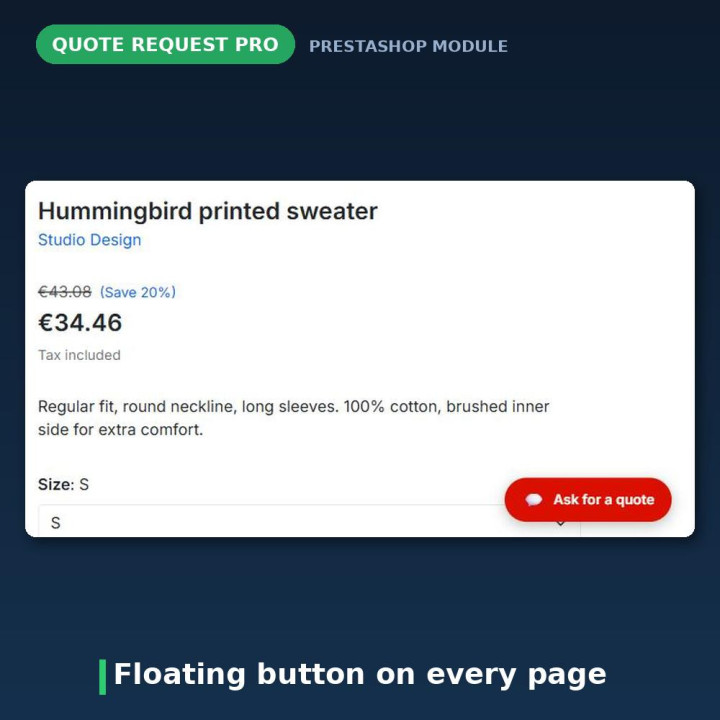
A sidebar block attaches to your theme's left or right column — installing the module registers both. A floating button sits above the page and opens the form on tap.
The floating button matters more than it sounds, and it is worth being blunt about why. A sidebar block can only appear where your theme actually draws a sidebar. On Hummingbird, the default theme in PrestaShop 9, the homepage and product pages are full-width and have no columns at all — a column-hooked block has nowhere to render on exactly the pages where someone is deciding whether to ask you for a price. The floating button does not depend on a column, so it covers those pages. If your theme does have a sidebar, use both; if it does not, the floating button is the module. It has its own on/off setting either way.
Ask for what you actually need
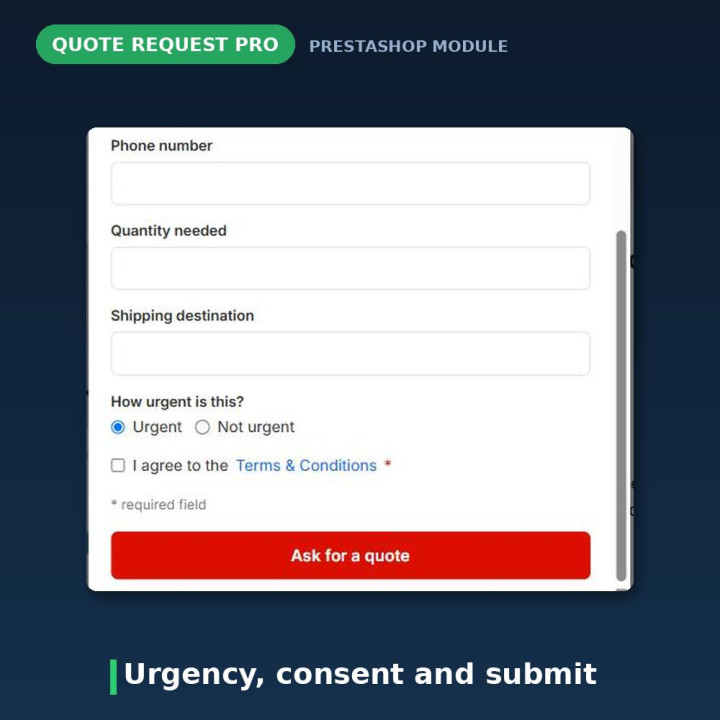
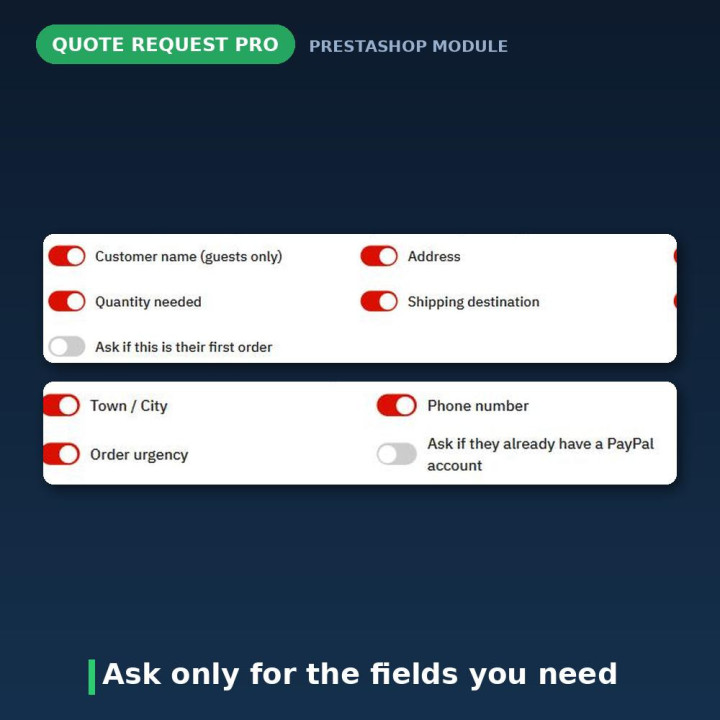
Three things are always required: the product description, an e-mail address to reply to, and the consent tick box. Everything else is a switch on the settings page: the visitor's name, address, town or city, phone number, quantity needed, shipping destination, an urgency choice, an "I already have a PayPal account" tick box and a "this would be my first order" tick box. Name, address, town, phone, quantity, destination and urgency start switched on; the two tick boxes start switched off.
Turn off everything you will not act on. A form that asks four questions gets finished more often than one that asks nine, and nothing you switch off is stored even if something posts it.
Signed-in customers are never asked twice
If a customer is logged in, the module takes their name and e-mail address from their account and does not show those fields at all. Guests are asked for both. The form a returning customer sees is genuinely shorter than the one a stranger sees.
Every request is kept, not just e-mailed
Requests are written to the module's own database table before any e-mail is attempted, and listed under a Quote Requests tab on the configuration page. You can filter by All, New or Handled, page through twenty at a time, open any request in a detail panel, mark it handled or back to new, and delete it.
The detail panel shows everything the visitor sent, with badges for the flags that matter at a glance — Urgent, Has a PayPal account, First-time customer — plus the full product text and the IP address the request came from.
This is the part that makes the module a tool rather than a form. A broken mail server on a bad day cannot lose a lead: the request is already saved, and a failed send is written to your logs instead of shown to the customer.
Two e-mails, not one
A merchant notification goes to the addresses you nominate — enter several, comma-separated, and they all get it.
The customer gets an e-mail too. It confirms their request arrived and repeats what they asked for, which is the difference between a shopper who waits for your reply and one who assumes the form was broken and buys somewhere else.
A notification card on the Dashboard
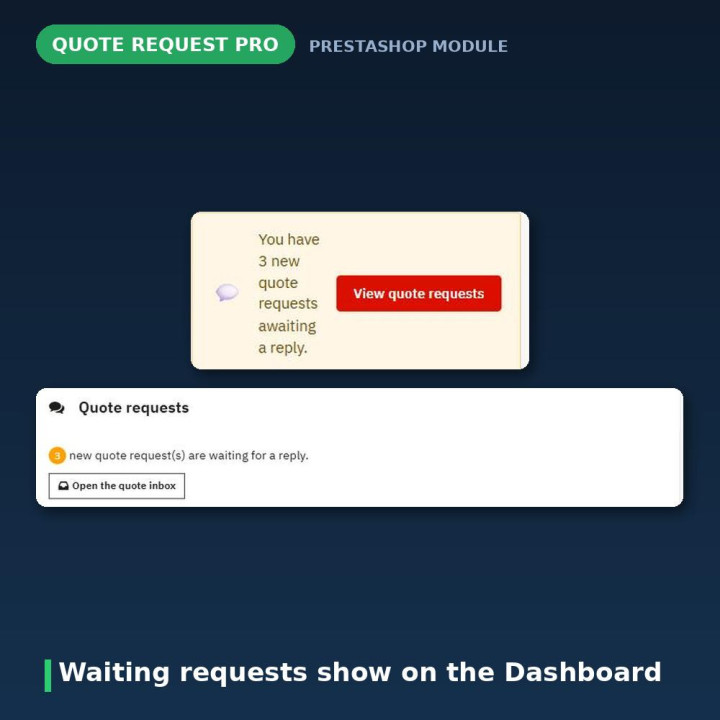
When quote requests are waiting, a card appears at the top of the back-office Dashboard with the count and a direct link to the list. It removes itself once every request has been marked handled or deleted, so it is a to-do indicator rather than permanent furniture.
It is attached to the dashboardZoneOne hook deliberately. The obvious choice, displayDashboardTop, turns out to fire on most admin pages that show a KPI row — Performance among them — so the card would have followed you around the back office instead of staying on the Dashboard where it belongs.
No CAPTCHA, and that is not a compromise
Version 1.x shipped a maths question. Version 2 removes it and protects the form three ways, none of which a real visitor ever sees:
A honeypot field that humans never see and bots fill in — and when it is filled, the form politely reports success and quietly discards the submission, so a bot gets no signal it was caught. A signed timing token, an HMAC-SHA256 signature over the moment the form was rendered, so a submission is rejected if it arrives faster than three seconds after the page loaded, or more than one hour later. And per-IP rate limiting that accepts at most five requests per hour from the same connection.
There is nothing to configure and no puzzle to solve.
It still works with JavaScript switched off
With JavaScript available the form submits in the background and swaps in a confirmation message. Without it, the form posts normally, the server handles it exactly the same way, and the visitor is returned to the page they came from with a success or error message shown at the top.
The return address is checked against your own shop's hostname before the redirect, so the form cannot be used to bounce someone to another site.
A promotional image and your own links
The settings page takes an optional promotional image — uploaded directly, no file paths to work out. It is resized to fit within 400×280 pixels with its proportions kept, and re-encoded rather than simply moved into place, so nothing can be smuggled onto your server appended to a valid image file. JPG, PNG, GIF and WEBP up to 4 MB.
Three links sit beside it, each set per language: a Learn more link for a page explaining how your quoting works, and your Terms & Conditions and Privacy Policy URLs. Leave the Terms field empty and the module links to the Terms & Conditions CMS page already configured in your shop. Leave Privacy empty and that link is simply not shown. A consent tick box is always displayed and always required.
Multistore, and a module that repairs itself
Settings are stored per shop, so each shop in a multistore installation has its own recipients, its own field choices and its own links. If a shop somehow has no settings row — added after installation, or lost some other way — one is created on the fly instead of the form quietly breaking for that shop.
Opening the configuration page also re-asserts the module's hooks and database schema and syncs the stored version number. PrestaShop's own Update button on the Modules list can fail for reasons outside any module's control, so rather than depend on it, the module converges to the correct state every time an administrator actually looks at it.
Compatibility
PrestaShop 1.7 through 9, in eight languages: Dutch, English, French, German, Italian, Polish, Spanish and Turkish.
One honest caveat: the e-mail templates ship in English, French, Spanish and Turkish only. The form your visitors see and the whole back office are translated into all eight; the two e-mails are not.
Five standard hooks, no overrides and no theme modification. PrestaShop 1.4, 1.5 and 1.6 are no longer supported — version 2.0.0 dropped them along with the old browser-side maths CAPTCHA and the bundled PDF manual, which the in-module Tutorial tab replaces.
Frequently asked questions
Do visitors have to solve a CAPTCHA?
No, and there is no setting to turn one on. The protection is a hidden honeypot field, an HMAC-signed timing token that rejects submissions arriving sooner than three seconds or later than one hour after the page loaded, and a limit of five requests per hour from one IP address. A real visitor sees none of it.
Where does the form appear?
In two places. A sidebar block goes into your theme's left or right column, and a floating button sits above the page and opens the same form. The floating button has its own on/off setting; the sidebar block depends on being attached to a column hook in Design → Positions and on your theme actually drawing a column on that page. On Hummingbird, PrestaShop 9's default theme, the homepage and product pages have no columns at all, so the floating button is what covers them. If your theme has no side columns on mobile — many do not — the floating button is what your phone visitors will use.
The form does not show on the storefront.
Open Design → Positions, search for priceandorder, and check it is attached to a column hook for the sidebar block and to the footer hook for the floating button. Installing the module attaches both column hooks, so this usually only matters on a customised theme.
If the floating button appears but the sidebar block never does, the hook is probably fine and the theme is the reason: many themes render only a left column, or none at all on full-width pages. Hummingbird draws a left column on category pages and no right column anywhere. Move the module to the column your theme actually uses, and rely on the floating button for full-width pages.
Which fields can I remove?
Everything except the product description, the e-mail address and the consent tick box. Address, town or city, phone, quantity, shipping destination, urgency, the PayPal question and the first-order question are each a switch. The visitor's name is also a switch, and is skipped automatically for signed-in customers along with their e-mail address.
Where do the requests go?
To the notification addresses you set — several, comma-separated, if you want — and to the Quote Requests tab on the module's configuration page. There you can filter by All, New or Handled, page through them twenty at a time, open any request in a detail panel, mark it handled, and delete it. Requests are saved before any e-mail is sent, so a mail problem cannot lose one.
Does the customer get a confirmation?
Yes. Two e-mails go out: one to you and one to the person who filled in the form, confirming what they asked for. The customer e-mail exists in English, French, Spanish and Turkish.
No notification e-mail arrives.
Check the recipient address in Settings first — if none is set, a warning appears next to the module in the modules list. Then check your spam folder and confirm outgoing mail works at all under Advanced Parameters → E-mail. Every failed send is recorded in Advanced Parameters → Logs, and the request itself is in the Quote Requests tab either way.
A visitor says the form rejected their submission.
That is almost always the automatic spam protection. The submission arrived less than three seconds after the page loaded, more than an hour after it loaded, or it was the sixth from that connection within an hour. Ask them to reload the page and try again.
I don't see the Dashboard notification card.
The card only appears on the Dashboard itself, and only while at least one request is still marked New. If requests are waiting and it still does not show, check Design → Positions for the dashboardZoneOne hook and make sure priceandorder is attached and enabled there — it is controlled separately from the storefront hooks.
Does it work if the visitor has JavaScript disabled?
Yes. The form falls back to an ordinary page submission, the server processes it identically, and the visitor comes back to the page they were on with a confirmation or an error message. Nothing is lost.
The promotional image looks stretched or gets rejected.
It should not be stretched — the image is fitted inside 400×280 pixels with its proportions preserved, never distorted. Rejections are usually the format or the size: JPG, PNG, GIF and WEBP are accepted, up to 4 MB.
The Terms & Conditions or Privacy Policy link is missing or wrong.
Set both explicitly in Settings, per language, and start each with http:// or https:// — the module rejects anything else. An empty Terms field falls back to your shop's own Terms & Conditions CMS page; an empty Privacy field simply hides that link.
What happens to my settings when I upgrade from 1.x?
They are migrated automatically. Your per-field toggles move to the new schema, your recipient address carries over, the quote-request log table is added, and leftover configuration keys from very old installations are cleaned up.













Comments (1)
Your review appreciation cannot be sent
Report comment
Report sent
Your report cannot be sent